

My first week working from home, the office was one end of the sofa. The laptop sat on a cushion, the charger only reached if I leaned to the left, and every video call froze at the exact moment someone asked me a question. By Friday my neck ached and I had files saved in three different places with no clear idea which version was current.
Plenty of remote workers stay in setups like this for months, because the problems build up slowly. None of it feels urgent until it adds up to a working day that drains you.
The good news is that fixing it rarely takes a big budget. A home office that works well rests on three things: equipment that does its job without fuss, enough protection that you are not worrying about lost data or a hacked account, and a setup your body can live with for a full day. Below are practical steps for each, whether you have a spare bedroom or a narrow desk in a hallway.
Pick the Right Spot Before You Buy Anything
It is tempting to start by ordering a new chair or monitor. Hold off until you have chosen where you will actually work, because the space shapes almost every other decision.
Look for a spot with a door if you can get one. Closing off work at the end of the day helps more than you might expect. If a separate room is not an option, a corner of the bedroom or living room can still work, as long as you use it only for work during office hours.
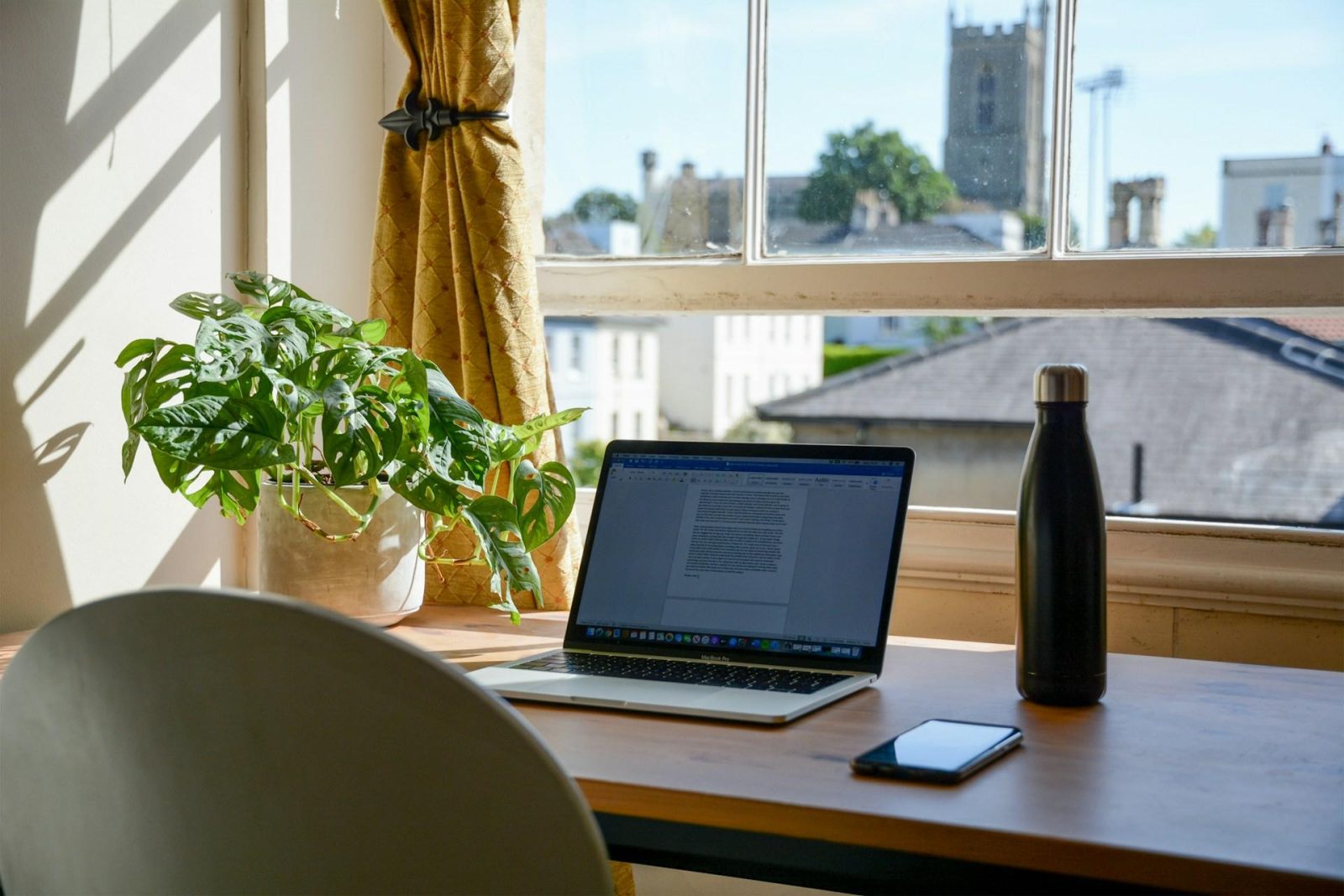
Natural light is worth chasing. A desk placed beside a window, rather than directly facing it or with the window behind you, gives you daylight without glare on the screen or a dark silhouette on camera. Check where the power outlets are and how far the spot is from your router, since both will matter shortly.
Finally, think about noise. Rugs, curtains and even a full bookshelf soften echo surprisingly well, and your colleagues will notice the difference on calls.
Build a Tech Setup You Can Rely On
Start with your internet connection. Upload speed matters as much as download speed, because video calls and cloud backups send data out constantly. Check what your plan actually delivers by running a free speed test at the time of day you usually work.
If you can, plug your computer straight into the router with an Ethernet cable. A wired connection is steadier than Wi-Fi. Where cables are impractical, a mesh Wi-Fi system or a modern router supporting Wi-Fi 6 or Wi-Fi 7 can make a real difference in larger homes or flats with thick walls.
An external monitor gives you more room to work and lets you raise the screen to a comfortable height. Many current laptops can drive a display and charge through a single USB-C or Thunderbolt cable, so one connection at the desk handles power, screen, keyboard and mouse.
Audio deserves more attention than it usually gets. A decent headset with a built-in microphone, or a simple USB microphone, will do more for your calls than an expensive webcam.
Two smaller additions are easy to overlook. A surge protector shields your equipment from power spikes, and a small uninterruptible power supply (UPS) buys time to save your work during an outage. Backups belong here too. A common approach is the 3-2-1 rule: keep three copies of important files, on two different types of storage, with one copy kept off-site or in the cloud.
Protect Your Devices, Data and Peace of Mind
A home network rarely gets the same attention as an office network, even though it often carries the same client files and payroll logins. Malware is still one of the most common ways work devices get compromised, usually through a convincing email attachment or a fake download link.
Reliable antivirus software scans files and blocks dangerous sites before they cause trouble. Most well-known providers offer an antivirus free trial, so you can test a product on your own machine before paying for a subscription and see how it affects performance and whether the alerts make sense.
Windows already includes Microsoft Defender, which covers the basics, but a trial helps you judge whether extras such as ransomware rollback or a bundled password manager are worth the money.
Updates matter just as much. Operating systems, browsers and apps receive regular security fixes, so turn on automatic updates wherever possible. If your computer still runs Windows 10, keep in mind that Microsoft ended support for it in October 2025. Extended Security Updates bought some users extra time, but moving to a supported system should be high on your list.
A few other habits round out the picture:
- Use a password manager so every account gets a long, unique password.
- Turn on multi-factor authentication for email, banking and work tools.
- Keep personal browsing and family use off your work device where possible.
- Lock your screen whenever you step away, even at home.
- Check with your employer about which tools, VPNs or security policies already apply to you.
That last point matters. If your company provides a managed laptop, follow its rules rather than installing extra software on top.
Make Comfort Part of the Plan
You will spend more hours in your chair than in almost any other piece of furniture you own, so it pays to get the basics right. Discomfort that seems minor in week one often turns into back, neck or wrist pain by month three.
A good chair supports your lower back and lets you adjust the seat height and armrests to suit you. A mid-range or well-reviewed second-hand chair handles the job well.
Once the chair is set, adjust everything else around your body:
- Place the top of the monitor at or slightly below eye level, roughly an arm's length away.
- Keep the keyboard and mouse close enough that your elbows stay near your sides, bent at around 90 degrees, with your wrists straight.
- Rest your feet flat on the floor, or on a footrest if your desk is on the tall side.
- Combine daylight with a desk lamp so you are not straining your eyes as the afternoon fades.
- Stand up, stretch or walk for a few minutes every half hour or so.
Standing desks are popular, and they can help, but standing all day brings its own aches in the feet, knees and lower back. The real benefit comes from switching positions through the day. If a full desk is out of budget, a desktop converter that sits on your existing table is a cheaper way to try it.
Eye strain is another quiet problem. Many optometrists suggest the 20-20-20 habit: every 20 minutes, look at something about 20 feet away for 20 seconds. It sounds trivial, but it noticeably reduces tired, dry eyes by the end of a long day. Blinking on purpose now and then helps too, since most people blink far less often while staring at a screen.
Draw a Line Between Work and Home
The hardest part of working from home is often knowing when to stop, especially when your laptop is always within reach. Without a commute, the workday can stretch into the evening before you notice.
Set clear start and finish times and share them with the people you live with. A short routine helps mark the shift, such as a walk before you sit down in the morning, then closing the laptop and switching off the desk lamp at the end of the day. Turning off work notifications on your phone after hours protects your evenings too.
Small personal touches also make the space feel like yours. A plant, a framed photo or a favourite mug will not boost productivity on their own, but they turn the room into somewhere you are happy to spend time.
Bringing It All Together
You do not have to finish your home office in one weekend. Start with the space, then sort out your connection and the equipment you use every day. Lock down your devices with updates, strong passwords and trusted security software. Adjust your chair, screen and lighting until a full day leaves you without aches, and give yourself firm boundaries so work stays in its place.
Tackle one area at a time, and within a few weeks you will have a setup that supports your work instead of fighting it, along with the calm that comes from knowing your data is safe.









1 thought on “Setting Up a Home Office That Actually Works: Tech, Comfort and Peace of Mind”
Comments are closed.